🖱️ PyAutoGUI Basics: Automate Your Desktop Like Magic
📚 What You'll Learn
By the end of this lesson, you will be able to:
- Understand the screen coordinate system: origin at top-left, x increasing right, y increasing down
- Control the mouse with
moveTo,moveRel,click,dragTo, andscroll - Automate the keyboard with
typewrite,press,hotkey, andkeyDown/keyUp - Find and click UI elements by image with
locateOnScreenand a confidence threshold - Read pixel colors and use message boxes for user interaction
- Protect your machine with
FAILSAFE,PAUSE, countdowns, and error screenshots
⏱️ Estimated Time: 45–60 minutes
🎯 Project: Build a small form-filling automation that moves the mouse, clicks fields, types values with Tab navigation, and takes a confirmation screenshot — all with the failsafe enabled.
PyAutoGUI transforms your Python scripts into powerful desktop automation tools - it can control your mouse, type on your keyboard, take screenshots, and interact with any application on your screen. Like having a virtual assistant that can operate your computer, PyAutoGUI enables you to automate repetitive tasks, test GUI applications, create demo videos, and even play games programmatically. Whether you're automating data entry, testing software, or creating bots, PyAutoGUI makes GUI automation accessible and powerful. Let's explore the fundamentals of desktop automation! 🎯
The PyAutoGUI Architecture
Think of PyAutoGUI as your computer's autopilot - it provides a simple, cross-platform Python API to control mouse movements, keyboard inputs, and screen interactions. By combining screen coordinates, image recognition, and input simulation, PyAutoGUI can automate virtually any desktop task that a human can perform. Understanding mouse control, keyboard automation, screen capture, and failsafe mechanisms is essential for safe and effective GUI automation!
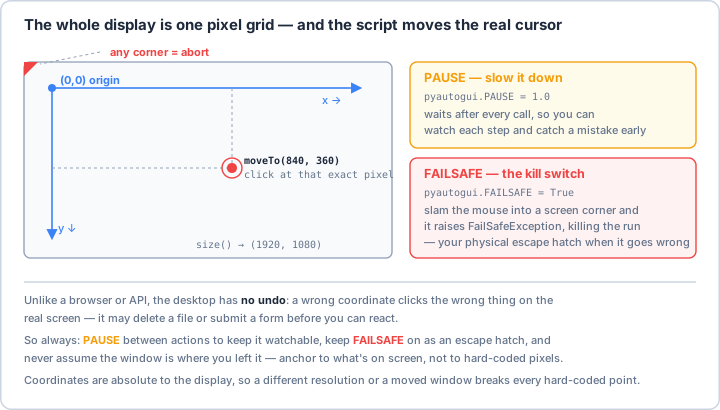
PAUSE on so the run stays watchable, and keep FAILSAFE on as a corner-slam kill switch.Real-World Scenario: The Desktop Automation Suite 🤖
You're building a comprehensive desktop automation system that fills out forms across multiple applications, captures and processes screen data, automates software testing workflows, creates interactive tutorials and demos, monitors system status and alerts, performs batch file operations, automates game playing strategies, and integrates with enterprise applications. Your system must handle different screen resolutions, work across platforms, recover from errors gracefully, and provide detailed logging. Let's build a robust PyAutoGUI automation framework!
# First, install required packages:
# pip install pyautogui pillow opencv-python numpy keyboard pynput
import pyautogui
import time
import logging
from typing import Optional, Tuple, List, Dict, Any, Union
from dataclasses import dataclass
from enum import Enum
from pathlib import Path
import json
import csv
from datetime import datetime
import sys
import os
# Additional imports for advanced features
from PIL import Image, ImageDraw, ImageFont
import numpy as np
import cv2
# For keyboard listening (optional)
try:
import keyboard
except ImportError:
keyboard = None
# ==================== Configuration ====================
@dataclass
class AutomationConfig:
"""Configuration for GUI automation."""
# Safety settings
failsafe: bool = True # Move mouse to corner to abort
failsafe_corner: Tuple[int, int] = (0, 0) # Top-left corner
# Timing settings
pause_between_actions: float = 0.1 # Seconds between actions
typing_interval: float = 0.05 # Seconds between keystrokes
# Screenshot settings
screenshot_region: Optional[Tuple[int, int, int, int]] = None
grayscale: bool = False # Use grayscale for image matching
confidence: float = 0.9 # Image matching confidence (0-1)
# Mouse settings
mouse_speed: float = 0.5 # Duration for mouse movements
tween_function: str = "easeInOutQuad" # Movement animation
# Logging
log_level: str = "INFO"
log_file: Optional[str] = "automation.log"
# Error handling
max_retries: int = 3
retry_delay: float = 1.0
take_screenshot_on_error: bool = True
# Platform-specific
platform: str = sys.platform # win32, darwin, linux
# ==================== Basic PyAutoGUI Setup ====================
class PyAutoGUIBasics:
"""Basic PyAutoGUI operations and setup."""
def __init__(self, config: Optional[AutomationConfig] = None):
self.config = config or AutomationConfig()
self.setup_pyautogui()
self.setup_logging()
def setup_pyautogui(self):
"""Configure PyAutoGUI settings."""
# Set failsafe
pyautogui.FAILSAFE = self.config.failsafe
# Set pause between actions
pyautogui.PAUSE = self.config.pause_between_actions
# Log system info
width, height = pyautogui.size()
self.screen_width = width
self.screen_height = height
print(f"Screen Resolution: {width}x{height}")
print(f"PyAutoGUI Version: {pyautogui.__version__}")
print(f"Platform: {self.config.platform}")
print(f"Failsafe: {'Enabled' if self.config.failsafe else 'Disabled'}")
def setup_logging(self):
"""Setup logging configuration."""
logging.basicConfig(
level=getattr(logging, self.config.log_level),
format='%(asctime)s - %(levelname)s - %(message)s',
handlers=[
logging.FileHandler(self.config.log_file) if self.config.log_file else logging.NullHandler(),
logging.StreamHandler()
]
)
self.logger = logging.getLogger(__name__)
def get_screen_info(self) -> Dict[str, Any]:
"""Get information about the screen."""
return {
'resolution': pyautogui.size(),
'width': self.screen_width,
'height': self.screen_height,
'mouse_position': pyautogui.position(),
'platform': self.config.platform
}
def demonstration(self):
"""Demonstrate basic PyAutoGUI features."""
print("\n=== PyAutoGUI Basic Demonstration ===\n")
# Safety check
response = pyautogui.confirm(
'This will demonstrate PyAutoGUI. Continue?',
buttons=['OK', 'Cancel']
)
if response != 'OK':
print("Demonstration cancelled.")
return
# Get current mouse position
original_x, original_y = pyautogui.position()
print(f"Current mouse position: ({original_x}, {original_y})")
# Move mouse to center of screen
center_x = self.screen_width // 2
center_y = self.screen_height // 2
print(f"Moving mouse to center: ({center_x}, {center_y})")
pyautogui.moveTo(center_x, center_y, duration=1)
# Draw a square with the mouse
print("Drawing a square...")
square_size = 100
pyautogui.moveRel(square_size, 0, duration=0.5)
pyautogui.moveRel(0, square_size, duration=0.5)
pyautogui.moveRel(-square_size, 0, duration=0.5)
pyautogui.moveRel(0, -square_size, duration=0.5)
# Return to original position
print(f"Returning to original position: ({original_x}, {original_y})")
pyautogui.moveTo(original_x, original_y, duration=1)
print("\nDemonstration complete!")
# ==================== Mouse Control ====================
class MouseController:
"""Advanced mouse control operations."""
def __init__(self, config: AutomationConfig):
self.config = config
self.logger = logging.getLogger(__name__)
def move_to(
self,
x: int,
y: int,
duration: Optional[float] = None,
tween: Optional[callable] = None
):
"""Move mouse to absolute position."""
duration = duration or self.config.mouse_speed
tween = tween or getattr(pyautogui, self.config.tween_function, pyautogui.linear)
self.logger.info(f"Moving mouse to ({x}, {y})")
pyautogui.moveTo(x, y, duration=duration, tween=tween)
def move_relative(
self,
x_offset: int,
y_offset: int,
duration: Optional[float] = None
):
"""Move mouse relative to current position."""
current_x, current_y = pyautogui.position()
new_x = current_x + x_offset
new_y = current_y + y_offset
self.logger.info(f"Moving mouse by ({x_offset}, {y_offset}) to ({new_x}, {new_y})")
pyautogui.moveRel(x_offset, y_offset, duration=duration or self.config.mouse_speed)
def click(
self,
x: Optional[int] = None,
y: Optional[int] = None,
clicks: int = 1,
interval: float = 0.0,
button: str = 'left'
):
"""Click at position."""
if x is not None and y is not None:
self.logger.info(f"Clicking at ({x}, {y}) with {button} button")
pyautogui.click(x, y, clicks=clicks, interval=interval, button=button)
else:
current_x, current_y = pyautogui.position()
self.logger.info(f"Clicking at current position ({current_x}, {current_y})")
pyautogui.click(clicks=clicks, interval=interval, button=button)
def double_click(self, x: Optional[int] = None, y: Optional[int] = None):
"""Double click at position."""
self.click(x, y, clicks=2, interval=0.1)
def right_click(self, x: Optional[int] = None, y: Optional[int] = None):
"""Right click at position."""
self.click(x, y, button='right')
def drag_to(
self,
x: int,
y: int,
duration: float = 0.5,
button: str = 'left'
):
"""Drag from current position to target."""
current_x, current_y = pyautogui.position()
self.logger.info(f"Dragging from ({current_x}, {current_y}) to ({x}, {y})")
pyautogui.dragTo(x, y, duration=duration, button=button)
def drag_relative(
self,
x_offset: int,
y_offset: int,
duration: float = 0.5,
button: str = 'left'
):
"""Drag relative to current position."""
self.logger.info(f"Dragging by ({x_offset}, {y_offset})")
pyautogui.dragRel(x_offset, y_offset, duration=duration, button=button)
def scroll(self, clicks: int, x: Optional[int] = None, y: Optional[int] = None):
"""Scroll mouse wheel."""
if x is not None and y is not None:
pyautogui.moveTo(x, y)
self.logger.info(f"Scrolling {clicks} clicks")
pyautogui.scroll(clicks)
def hover(self, x: int, y: int, duration: float = 1.0):
"""Hover over position for duration."""
self.move_to(x, y)
time.sleep(duration)
# ==================== Keyboard Control ====================
class KeyboardController:
"""Advanced keyboard control operations."""
def __init__(self, config: AutomationConfig):
self.config = config
self.logger = logging.getLogger(__name__)
def type_text(
self,
text: str,
interval: Optional[float] = None,
pause_after: float = 0
):
"""Type text with optional interval between keystrokes."""
interval = interval or self.config.typing_interval
self.logger.info(f"Typing: {text[:50]}...")
pyautogui.typewrite(text, interval=interval)
if pause_after > 0:
time.sleep(pause_after)
def press_key(self, key: str, presses: int = 1, interval: float = 0.0):
"""Press a key or key sequence."""
self.logger.info(f"Pressing key: {key} ({presses} times)")
pyautogui.press(key, presses=presses, interval=interval)
def hotkey(self, *keys):
"""Press a hotkey combination."""
hotkey_str = '+'.join(keys)
self.logger.info(f"Pressing hotkey: {hotkey_str}")
pyautogui.hotkey(*keys)
def key_down(self, key: str):
"""Hold a key down."""
self.logger.info(f"Holding key down: {key}")
pyautogui.keyDown(key)
def key_up(self, key: str):
"""Release a held key."""
self.logger.info(f"Releasing key: {key}")
pyautogui.keyUp(key)
def type_with_modifiers(self, text: str, modifiers: List[str]):
"""Type text while holding modifier keys."""
for modifier in modifiers:
self.key_down(modifier)
self.type_text(text)
for modifier in reversed(modifiers):
self.key_up(modifier)
def copy(self):
"""Simulate copy (Ctrl+C or Cmd+C)."""
if self.config.platform == 'darwin':
self.hotkey('command', 'c')
else:
self.hotkey('ctrl', 'c')
def paste(self):
"""Simulate paste (Ctrl+V or Cmd+V)."""
if self.config.platform == 'darwin':
self.hotkey('command', 'v')
else:
self.hotkey('ctrl', 'v')
def select_all(self):
"""Simulate select all (Ctrl+A or Cmd+A)."""
if self.config.platform == 'darwin':
self.hotkey('command', 'a')
else:
self.hotkey('ctrl', 'a')
def undo(self):
"""Simulate undo (Ctrl+Z or Cmd+Z)."""
if self.config.platform == 'darwin':
self.hotkey('command', 'z')
else:
self.hotkey('ctrl', 'z')
# ==================== Screen Functions ====================
class ScreenCapture:
"""Screen capture and image recognition."""
def __init__(self, config: AutomationConfig):
self.config = config
self.logger = logging.getLogger(__name__)
def screenshot(
self,
filename: Optional[str] = None,
region: Optional[Tuple[int, int, int, int]] = None
) -> Image.Image:
"""Take a screenshot."""
region = region or self.config.screenshot_region
self.logger.info(f"Taking screenshot: {filename or 'in memory'}")
if filename:
screenshot = pyautogui.screenshot(filename, region=region)
else:
screenshot = pyautogui.screenshot(region=region)
return screenshot
def locate_image(
self,
image_path: str,
region: Optional[Tuple[int, int, int, int]] = None,
confidence: Optional[float] = None,
grayscale: Optional[bool] = None
) -> Optional[Tuple[int, int, int, int]]:
"""Locate an image on screen."""
confidence = confidence or self.config.confidence
grayscale = grayscale if grayscale is not None else self.config.grayscale
self.logger.info(f"Locating image: {image_path}")
try:
location = pyautogui.locateOnScreen(
image_path,
region=region,
confidence=confidence,
grayscale=grayscale
)
if location:
self.logger.info(f"Image found at: {location}")
else:
self.logger.warning(f"Image not found: {image_path}")
return location
except Exception as e:
self.logger.error(f"Error locating image: {e}")
return None
def locate_all_images(
self,
image_path: str,
region: Optional[Tuple[int, int, int, int]] = None,
confidence: Optional[float] = None
) -> List[Tuple[int, int, int, int]]:
"""Locate all instances of an image on screen."""
confidence = confidence or self.config.confidence
self.logger.info(f"Locating all instances of: {image_path}")
try:
locations = list(pyautogui.locateAllOnScreen(
image_path,
region=region,
confidence=confidence,
grayscale=self.config.grayscale
))
self.logger.info(f"Found {len(locations)} instances")
return locations
except Exception as e:
self.logger.error(f"Error locating images: {e}")
return []
def wait_for_image(
self,
image_path: str,
timeout: float = 10,
poll_interval: float = 0.5
) -> Optional[Tuple[int, int, int, int]]:
"""Wait for an image to appear on screen."""
self.logger.info(f"Waiting for image: {image_path} (timeout: {timeout}s)")
start_time = time.time()
while time.time() - start_time < timeout:
location = self.locate_image(image_path)
if location:
return location
time.sleep(poll_interval)
self.logger.warning(f"Timeout waiting for image: {image_path}")
return None
def click_image(
self,
image_path: str,
clicks: int = 1,
interval: float = 0.0,
button: str = 'left'
) -> bool:
"""Click on an image if found."""
location = self.locate_image(image_path)
if location:
center_x, center_y = pyautogui.center(location)
self.logger.info(f"Clicking image at: ({center_x}, {center_y})")
pyautogui.click(center_x, center_y, clicks=clicks, interval=interval, button=button)
return True
else:
self.logger.warning(f"Cannot click - image not found: {image_path}")
return False
def get_pixel_color(self, x: int, y: int) -> Tuple[int, int, int]:
"""Get color of pixel at position."""
screenshot = pyautogui.screenshot()
color = screenshot.getpixel((x, y))
self.logger.debug(f"Pixel color at ({x}, {y}): RGB{color}")
return color
def wait_for_pixel_color(
self,
x: int,
y: int,
target_color: Tuple[int, int, int],
timeout: float = 10,
tolerance: int = 0
) -> bool:
"""Wait for pixel to become target color."""
self.logger.info(f"Waiting for pixel ({x}, {y}) to become RGB{target_color}")
start_time = time.time()
while time.time() - start_time < timeout:
current_color = self.get_pixel_color(x, y)
if self._colors_match(current_color, target_color, tolerance):
return True
time.sleep(0.1)
return False
def _colors_match(
self,
color1: Tuple[int, int, int],
color2: Tuple[int, int, int],
tolerance: int
) -> bool:
"""Check if two colors match within tolerance."""
return all(
abs(c1 - c2) <= tolerance
for c1, c2 in zip(color1, color2)
)
# ==================== Message Boxes ====================
class MessageBoxes:
"""Display message boxes and get user input."""
def __init__(self):
self.logger = logging.getLogger(__name__)
def alert(self, text: str, title: str = "Alert", button: str = "OK"):
"""Display an alert box."""
self.logger.info(f"Showing alert: {title}")
return pyautogui.alert(text, title, button)
def confirm(
self,
text: str,
title: str = "Confirm",
buttons: List[str] = ['OK', 'Cancel']
):
"""Display a confirmation box."""
self.logger.info(f"Showing confirmation: {title}")
return pyautogui.confirm(text, title, buttons)
def prompt(
self,
text: str,
title: str = "Input",
default: str = ""
):
"""Display an input prompt."""
self.logger.info(f"Showing prompt: {title}")
return pyautogui.prompt(text, title, default)
def password(
self,
text: str,
title: str = "Password",
default: str = "",
mask: str = "*"
):
"""Display a password input prompt."""
self.logger.info(f"Showing password prompt: {title}")
return pyautogui.password(text, title, default, mask)
# ==================== Safety Features ====================
class SafetyFeatures:
"""Safety mechanisms for GUI automation."""
def __init__(self, config: AutomationConfig):
self.config = config
self.logger = logging.getLogger(__name__)
def check_failsafe(self) -> bool:
"""Check if mouse is in failsafe corner."""
x, y = pyautogui.position()
if (x, y) == self.config.failsafe_corner:
self.logger.warning("Failsafe triggered!")
return True
return False
def countdown(self, seconds: int = 3):
"""Display countdown before starting automation."""
print(f"\nStarting in {seconds} seconds...")
print("Move mouse to top-left corner to abort!")
for i in range(seconds, 0, -1):
print(f"{i}...")
time.sleep(1)
if self.check_failsafe():
print("Aborted by failsafe!")
sys.exit(0)
print("Starting automation...")
def pause_and_confirm(self, message: str = "Continue?") -> bool:
"""Pause and ask for confirmation."""
response = pyautogui.confirm(message, buttons=['Continue', 'Abort'])
if response == 'Abort':
self.logger.info("Automation aborted by user")
return False
return True
def safe_execute(self, func: callable, *args, **kwargs) -> Any:
"""Execute function with error handling and retries."""
last_error = None
for attempt in range(self.config.max_retries):
try:
return func(*args, **kwargs)
except pyautogui.FailSafeException:
self.logger.error("Failsafe triggered - aborting!")
raise
except Exception as e:
last_error = e
self.logger.warning(f"Attempt {attempt + 1} failed: {e}")
if self.config.take_screenshot_on_error:
error_screenshot = f"error_{datetime.now().strftime('%Y%m%d_%H%M%S')}.png"
pyautogui.screenshot(error_screenshot)
self.logger.info(f"Error screenshot saved: {error_screenshot}")
if attempt < self.config.max_retries - 1:
time.sleep(self.config.retry_delay)
raise last_error
# ==================== Automation Patterns ====================
class AutomationPatterns:
"""Common automation patterns and workflows."""
def __init__(self, config: AutomationConfig):
self.config = config
self.mouse = MouseController(config)
self.keyboard = KeyboardController(config)
self.screen = ScreenCapture(config)
self.logger = logging.getLogger(__name__)
def fill_form(self, form_data: Dict[str, Any]):
"""Fill out a form with tab navigation."""
self.logger.info("Filling form...")
for field_name, value in form_data.items():
self.logger.info(f"Filling field: {field_name}")
# Type the value
if isinstance(value, bool):
# Checkbox - press space to toggle
self.keyboard.press_key('space')
elif isinstance(value, list):
# Dropdown - type first letters or use arrow keys
for item in value:
self.keyboard.type_text(str(item))
self.keyboard.press_key('tab')
else:
# Text field
self.keyboard.type_text(str(value))
# Move to next field
self.keyboard.press_key('tab')
time.sleep(0.1)
def click_through_menu(self, menu_items: List[str]):
"""Navigate through menu items."""
self.logger.info("Navigating menu...")
for item in menu_items:
# Try to find and click menu item
if self.screen.click_image(f"menu_{item}.png"):
time.sleep(0.5)
else:
self.logger.warning(f"Menu item not found: {item}")
return False
return True
def drag_and_drop(
self,
source: Union[Tuple[int, int], str],
target: Union[Tuple[int, int], str]
):
"""Perform drag and drop operation."""
# Get source position
if isinstance(source, str):
source_loc = self.screen.locate_image(source)
if source_loc:
source_x, source_y = pyautogui.center(source_loc)
else:
self.logger.error(f"Source not found: {source}")
return False
else:
source_x, source_y = source
# Get target position
if isinstance(target, str):
target_loc = self.screen.locate_image(target)
if target_loc:
target_x, target_y = pyautogui.center(target_loc)
else:
self.logger.error(f"Target not found: {target}")
return False
else:
target_x, target_y = target
# Perform drag and drop
self.logger.info(f"Dragging from ({source_x}, {source_y}) to ({target_x}, {target_y})")
self.mouse.move_to(source_x, source_y)
self.mouse.drag_to(target_x, target_y, duration=1.0)
return True
def wait_and_click(
self,
image_path: str,
timeout: float = 10,
retry_interval: float = 0.5
) -> bool:
"""Wait for an element to appear and click it."""
location = self.screen.wait_for_image(image_path, timeout, retry_interval)
if location:
center_x, center_y = pyautogui.center(location)
self.mouse.click(center_x, center_y)
return True
return False
def scroll_until_found(
self,
target_image: str,
max_scrolls: int = 10,
scroll_amount: int = -3
) -> bool:
"""Scroll until target image is found."""
for i in range(max_scrolls):
if self.screen.locate_image(target_image):
self.logger.info(f"Found target after {i} scrolls")
return True
self.mouse.scroll(scroll_amount)
time.sleep(0.5)
self.logger.warning("Target not found after maximum scrolls")
return False
# ==================== Automation Recorder ====================
class AutomationRecorder:
"""Record and playback user actions."""
def __init__(self):
self.actions = []
self.recording = False
self.logger = logging.getLogger(__name__)
def start_recording(self):
"""Start recording user actions."""
self.logger.info("Recording started...")
self.recording = True
self.actions = []
# Note: Full recording requires keyboard/mouse hooks
# This is a simplified example
print("Recording actions... Press ESC to stop")
def stop_recording(self):
"""Stop recording."""
self.recording = False
self.logger.info(f"Recording stopped. {len(self.actions)} actions recorded")
def save_recording(self, filename: str):
"""Save recorded actions to file."""
with open(filename, 'w') as f:
json.dump(self.actions, f, indent=2)
self.logger.info(f"Recording saved to {filename}")
def load_recording(self, filename: str):
"""Load recorded actions from file."""
with open(filename, 'r') as f:
self.actions = json.load(f)
self.logger.info(f"Loaded {len(self.actions)} actions from {filename}")
def playback(self, speed: float = 1.0):
"""Playback recorded actions."""
self.logger.info("Playing back recorded actions...")
for action in self.actions:
action_type = action['type']
if action_type == 'move':
pyautogui.moveTo(action['x'], action['y'], duration=action['duration'] / speed)
elif action_type == 'click':
pyautogui.click(action['x'], action['y'], button=action['button'])
elif action_type == 'type':
pyautogui.typewrite(action['text'], interval=action['interval'] / speed)
elif action_type == 'key':
pyautogui.press(action['key'])
elif action_type == 'wait':
time.sleep(action['duration'] / speed)
self.logger.info("Playback complete")
# ==================== Main Automation Class ====================
class GUIAutomation:
"""Main GUI automation interface."""
def __init__(self, config: Optional[AutomationConfig] = None):
self.config = config or AutomationConfig()
# Initialize components
self.basics = PyAutoGUIBasics(self.config)
self.mouse = MouseController(self.config)
self.keyboard = KeyboardController(self.config)
self.screen = ScreenCapture(self.config)
self.messages = MessageBoxes()
self.safety = SafetyFeatures(self.config)
self.patterns = AutomationPatterns(self.config)
self.recorder = AutomationRecorder()
self.logger = logging.getLogger(__name__)
def run_automation(self, script_path: str):
"""Run an automation script."""
self.logger.info(f"Running automation script: {script_path}")
# Safety countdown
self.safety.countdown(3)
# Load and execute script
try:
with open(script_path, 'r') as f:
script = json.load(f)
for step in script['steps']:
self.execute_step(step)
except Exception as e:
self.logger.error(f"Automation failed: {e}")
raise
def execute_step(self, step: Dict[str, Any]):
"""Execute a single automation step."""
step_type = step['type']
if step_type == 'click':
self.mouse.click(step['x'], step['y'])
elif step_type == 'type':
self.keyboard.type_text(step['text'])
elif step_type == 'hotkey':
self.keyboard.hotkey(*step['keys'])
elif step_type == 'wait':
time.sleep(step['duration'])
elif step_type == 'screenshot':
self.screen.screenshot(step.get('filename'))
else:
self.logger.warning(f"Unknown step type: {step_type}")
# Example usage
if __name__ == "__main__":
print("🖱️ PyAutoGUI Basics Examples\n")
# Example 1: Initialize PyAutoGUI
print("1️⃣ Initializing PyAutoGUI:")
config = AutomationConfig(
failsafe=True,
pause_between_actions=0.1,
confidence=0.9
)
automation = GUIAutomation(config)
# Get screen info
info = automation.basics.get_screen_info()
print(f" Screen: {info['width']}x{info['height']}")
print(f" Mouse: {info['mouse_position']}")
print(f" Platform: {info['platform']}")
# Example 2: Mouse operations
print("\n2️⃣ Mouse Control Examples:")
print(" # Move to position")
print(" automation.mouse.move_to(100, 200)")
print("\n # Click at position")
print(" automation.mouse.click(500, 300)")
print("\n # Drag and drop")
print(" automation.mouse.drag_to(600, 400)")
# Example 3: Keyboard operations
print("\n3️⃣ Keyboard Control Examples:")
print(" # Type text")
print(" automation.keyboard.type_text('Hello, World!')")
print("\n # Press hotkey")
print(" automation.keyboard.hotkey('ctrl', 'c')")
print("\n # Special keys")
print(" automation.keyboard.press_key('enter')")
# Example 4: Screen capture
print("\n4️⃣ Screen Capture Examples:")
print(" # Take screenshot")
print(" screenshot = automation.screen.screenshot('screen.png')")
print("\n # Find image on screen")
print(" location = automation.screen.locate_image('button.png')")
print("\n # Click on image")
print(" automation.screen.click_image('submit_button.png')")
# Example 5: Common patterns
print("\n5️⃣ Common Automation Patterns:")
patterns = [
("Form Filling", "automation.patterns.fill_form(data)"),
("Menu Navigation", "automation.patterns.click_through_menu(items)"),
("Drag and Drop", "automation.patterns.drag_and_drop(source, target)"),
("Wait and Click", "automation.patterns.wait_and_click('button.png')"),
("Scroll Search", "automation.patterns.scroll_until_found('target.png')")
]
for pattern, code in patterns:
print(f" {pattern}:")
print(f" {code}")
# Example 6: Safety features
print("\n6️⃣ Safety Features:")
safety_features = [
"Failsafe (move to corner to abort)",
"Countdown before starting",
"Pause between actions",
"Error screenshots",
"Retry on failure",
"Confirmation dialogs"
]
for feature in safety_features:
print(f" • {feature}")
# Example 7: Image recognition
print("\n7️⃣ Image Recognition:")
print(" # Basic image search")
print(" pyautogui.locateOnScreen('button.png')")
print("\n # With confidence threshold")
print(" pyautogui.locateOnScreen('button.png', confidence=0.8)")
print("\n # Find all instances")
print(" pyautogui.locateAllOnScreen('icon.png')")
# Example 8: Message boxes
print("\n8️⃣ Message Box Types:")
boxes = [
("Alert", "pyautogui.alert('Message')"),
("Confirm", "pyautogui.confirm('Continue?')"),
("Prompt", "pyautogui.prompt('Enter value:')"),
("Password", "pyautogui.password('Enter password:')")
]
for box_type, code in boxes:
print(f" {box_type}: {code}")
# Example 9: Best practices
print("\n9️⃣ PyAutoGUI Best Practices:")
practices = [
"🛡️ Always enable failsafe",
"⏱️ Add delays between actions",
"📸 Use screenshots for debugging",
"🔄 Implement retry logic",
"📝 Log all actions",
"🎯 Use image recognition for dynamic UIs",
"⚠️ Handle errors gracefully",
"🔍 Verify actions completed",
"💾 Save automation scripts as JSON",
"🧪 Test on different resolutions"
]
for practice in practices:
print(f" {practice}")
# Example 10: Common use cases
print("\n🔟 Common Use Cases:")
use_cases = [
"Data entry automation",
"Software testing",
"Game automation",
"Web scraping (when APIs unavailable)",
"Creating demos and tutorials",
"Batch file operations",
"System monitoring",
"Accessibility tools"
]
for use_case in use_cases:
print(f" • {use_case}")
print("\n✅ PyAutoGUI basics demonstration complete!")
# Optional: Run interactive demo
response = input("\nWould you like to see an interactive demo? (y/n): ")
if response.lower() == 'y':
automation.basics.demonstration()
Key Takeaways and Best Practices 🎯
- Enable Failsafe: Always keep the failsafe enabled for emergency stops.
- Add Delays: Include pauses between actions to ensure UI responsiveness.
- Use Image Recognition: More reliable than hard-coded coordinates.
- Handle Errors: Implement retry logic and error screenshots.
- Log Everything: Detailed logging helps debug automation issues.
- Test Thoroughly: Test on different screen resolutions and systems.
- Confirm Actions: Add confirmation dialogs for destructive operations.
- Save Scripts: Store automation sequences for reuse.
PyAutoGUI Best Practices 📋
Mastering PyAutoGUI basics opens up a world of desktop automation possibilities. You can now control your mouse and keyboard programmatically, capture and analyze screen content, automate repetitive tasks, and create sophisticated GUI testing frameworks. Whether you're automating data entry, testing applications, or creating interactive demos, PyAutoGUI provides the foundation for powerful desktop automation! 🚀
📓 Learning Journal
Keep a learning journal — digital or physical. After this lesson, take a few minutes to write down:
- Key concepts you learned
- Techniques that clicked for you
- Questions or confusion points to revisit
- Ideas you want to try
- Your progress and feelings about learning this
✍️ This lesson's prompt: The desktop has no undo — a wrong coordinate can click something before you can react. How did knowing that change how carefully you set up the failsafe and tested your first script, compared to code that only touches files?
📝 Lesson Summary
🎓 Key Takeaways
- PyAutoGUI drives the real cursor and keyboard over one screen-wide pixel grid whose origin is the top-left corner.
- Absolute coordinates break when the resolution changes or a window moves — image matching with
locateOnScreenis more robust for dynamic UIs. - Keep
PAUSEon so runs stay watchable andFAILSAFEon as a corner-slam kill switch — these are your emergency brakes. - Verify that actions actually happened (screenshots, pixel checks, waiting for an image) rather than assuming a call succeeded.
🎉 What You've Accomplished
You can now control the mouse and keyboard from Python, find elements on screen by image, read pixels, prompt the user, and do it all with real safety mechanisms. This is the foundation every later GUI automation lesson builds on.
❓ Common Questions at This Stage
My coordinates work on my screen but fail on another machine. Why?
PyAutoGUI coordinates are absolute to the display, so a different resolution, scaling, or window position moves your target out from under a hardcoded point. Prefer locateOnScreen to find elements by appearance, or recompute positions relative to a known anchor.
What exactly does the failsafe do, and should I ever turn it off?
With FAILSAFE = True, slamming the mouse into a screen corner raises FailSafeException and aborts the run — your escape hatch when automation misbehaves. Leave it on. Turning it off removes your quickest way to regain control of a runaway script.
Why does locateOnScreen return None for an element I can clearly see?
Template matching is exact-ish: a theme change, DPI/scaling difference, or anti-aliasing can shift pixels enough to miss. Lower the confidence below 1.0 (e.g. 0.8–0.9), capture the template on the same display, or use a grayscale match to make it more tolerant.
🔭 Looking Ahead
You now have basic control. Next you'll go deeper into precise, human-like mouse and keyboard input — the finer motor skills your automation needs for realistic, reliable interaction.
✅ Before the Next Lesson
- Write a script that reads
pyautogui.position()in a loop so you can hover over UI elements and record their coordinates. - Capture a small button image and use
locateOnScreenwith a 0.8 confidence to click it, confirming the match works. - Write your Learning Journal entry for this lesson.
🌟 Encouragement for the Journey
You've just handed your Python scripts a mouse and keyboard of their own. Treat that power with care and it opens up automation for anything on your screen. Start small, keep the failsafe on, and keep going!
Pro Tip: Think of PyAutoGUI as your computer's autopilot - powerful but requiring careful navigation. Always start with the failsafe enabled (move mouse to corner to abort) - this is your emergency brake. Add delays between actions because UIs need time to respond, especially web applications. Use image recognition instead of hard-coded coordinates whenever possible - it's more robust across different screens and resolutions. Implement proper error handling with screenshots on failure for debugging. Use confidence thresholds (0.8-0.9) for image matching to handle slight visual variations. Test your automation at different speeds - what works on your machine might be too fast for others. Create reusable patterns for common tasks like form filling or menu navigation. Log every action with timestamps for troubleshooting. Use virtual environments to ensure consistent behavior across systems. Remember that PyAutoGUI can't interact with elevated/admin windows on Windows without running as admin. Most importantly: always test in a safe environment first - automated mouse and keyboard control can cause unintended actions if not properly configured!